
Thanks to technological advancement, modern phones come with unique features for a better user experience. One such feature, that you will find in the latest iPhone models, is the Siri voice assistant. This feature will help you use your phone even when you don’t have a free hand. Siri enables users to communicate with their phone through voice commands, which can be helpful when driving or when you just don’t want to get up. This guide looks at how to use Siri on an iPhone 12, 12 Mini, 12 Pro or Pro Max.
What Is Siri And How is it Used On an iPhone 12?
Siri is Apple’s personal assistant for iOS, macOS, WatchOs and tvOs devices. The assistant is powered by artificial intelligence (AI) and uses voice recognition. When developing Siri, Apple’s idea was to give users a personal assistant they could talk to as if they were conversing with a friend. Siri aims to help users get things done by providing answers and helping them perform some tasks.
Thanks to Siri’s ability to access all the built-in applications on your iPhone 12, from Messages to contacts, Maps, contacts, and so on, it allows you to use your voice to send audio and text messages, place phone calls, schedule appointments meetings, translate text and many more. Here is how you use Siri on iPhone 12.
If Siri is enabled on your iPhone 12, you can activate it with voice or a button.
Activating Siri With Voice
- Say “Hey Siri,” followed by a question or a command for the task you want Siri to do for you. For example, “Hey Siri, how is today’s weather?” or “Hey Siri, send a message.”
- If you wish to ask request something or ask Siri another question, say “Hey Siri” again or tap on the Siri icon at the bottom of the screen.
Activating Siri With Button
When you activate Siri with a button, Siri will respond out loud when not in silent mode and silently when silent mode is on. Below is are the steps to follow:
- Step 1:Choose any of the following, depending on your situation:
- iPhone model with a Home button: press and hold the Home button.
- On an iPhone with Face ID: press and hold the iPhone’s side button.
- When wearing Earpods: Press and hold the call or centre button.
Siri Eyes Free: Activate Siri by simply pressing and holding the voice command button on the steering wheel.
Car play: Go to CarPlay Home Screen and press the home button or press and hold the voice command button on the steering wheel.
step 2: When Siri appears, as her the question or give the commands for the task you want to be done. For example, “Set an alarm at 4:00 am” or “How is the weather like today?”
Step 3: If you wish to ask Siri another question, tap on the Siri icon at the bottom of the screen.
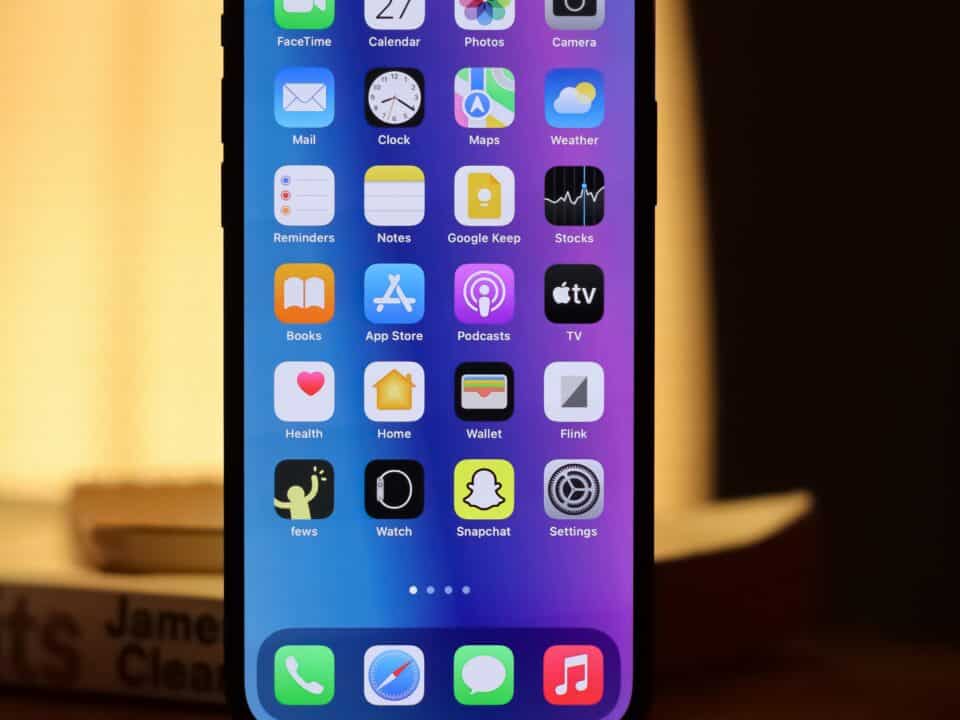
Unlike previous versions, the voice assistant in iOS 14 does not take over your full screen. Instead, it shows a colourful icon at the boom of the screen to indicate that it is listening to you. Likewise, when responding, the responses will appear as widgets and banners on a portion of the screen instead of taking over the whole display.
How to Fire Up Siri on an iPhone 12
Your iPhone 12 will come with Siri already installed, but you must first turn on the feature to ensure that Siri recognises you. Below is how to enable it.
Step 1: Open the Settings app
Step 2: Select the Go to Siri and Search option
Step 3:Slide the Listen to “Hey Siri” button right to enable Siri. You can also enable the Press Side Button for Siri and Allow Siri When Locked options.
Step 4:Tap continue on the Set Up screen
Step 5: You will be asked to say “Hey Siri” and several other phrases: “Hey Siri, how’s the weather like today,” “Hey Siri, send a message,” “Hey Siri, set a timer for three minutes,” and “Hey Siri, play some music.”
The above activation will enable Siri to respond to your voice every time you say “Hey Siri,” even when your phone is locked. However, if you only want Siri to respond when your iPhone is unlocked, you can disable the feature on the Siri and Search screen.
Other Siri Tips on an iPhone 12
Making Siri Know Who You Are
After you have enabled Siri, you should let it know who you are. You can do this by selecting the “My information” option on the Siri & Search screen, then your contacts. This information will help Siri respond to questions like “How do I Get Home?” or “What good restaurants are nearby?”
Changing how the assistant Sounds
You can also change how Siri sounds and the language. Below are the steps to follow:
- Go to the settings app
- Scroll to and select Siri & Search
- Select Siri Voice and choose the available voices and genders, depending on the country and region
- To change the language, Select Language from the Siri & Search screen and choose your preferred language.
Use the Keyboard instead of Speaking
If you want to use your keyboard instead of saying “Hey Siri”, you can make the changes by going to Settings> Accessibility> Siri, then turn on Type to Siri. To ask a question or make a request, activate Siri, then type using the keyboard.
Making a Correction when Siri Does not understand your Question
Below are some ways of making corrections if Siri doesn’t understand your question or command.
- Rephrase your request by tapping on the Siri icon and saying it in a different way
- Say “Change it” to change a message before you send it.
- If there are specific words that Siri did not understand, tap the Siri Icon and repeat your question and spell out the words that Siri did not understand. For example, if you said “Call John” and Siri did not understand, you can repeat the word “call,” then spell the word, ‘John’.
- Edit your request by typing: If you wish to edit your request with text, you can edit it by tapping it on the screen and using the onscreen keyboard to edit.
How To Use Siri On An iPhone 12 – Answered
We hope you found this how-to article useful – if you have any other requests for how-to articles please let us know!
Looking to repair your iPhone 12? Find our range of Apple iPhone 12 repair parts here.